
 We produce your product
DA 1450
DECT TeleCare
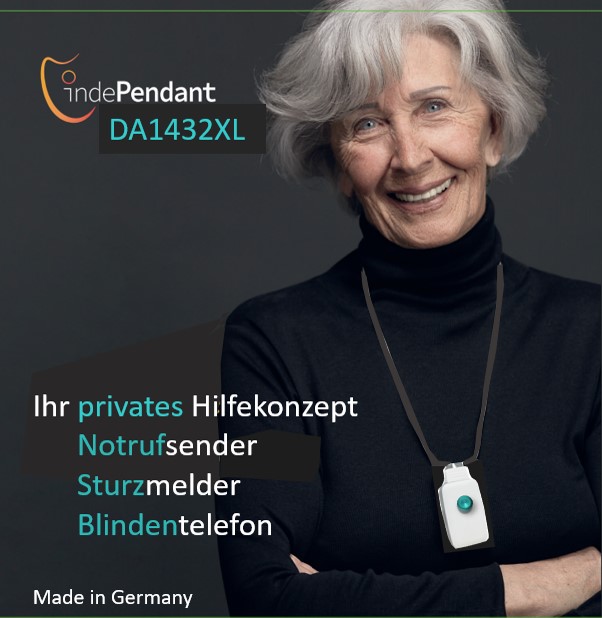


Blind Telephone
Emergency Call
Fall Detector
for your DECT Telephone System
no monthly fees and costs
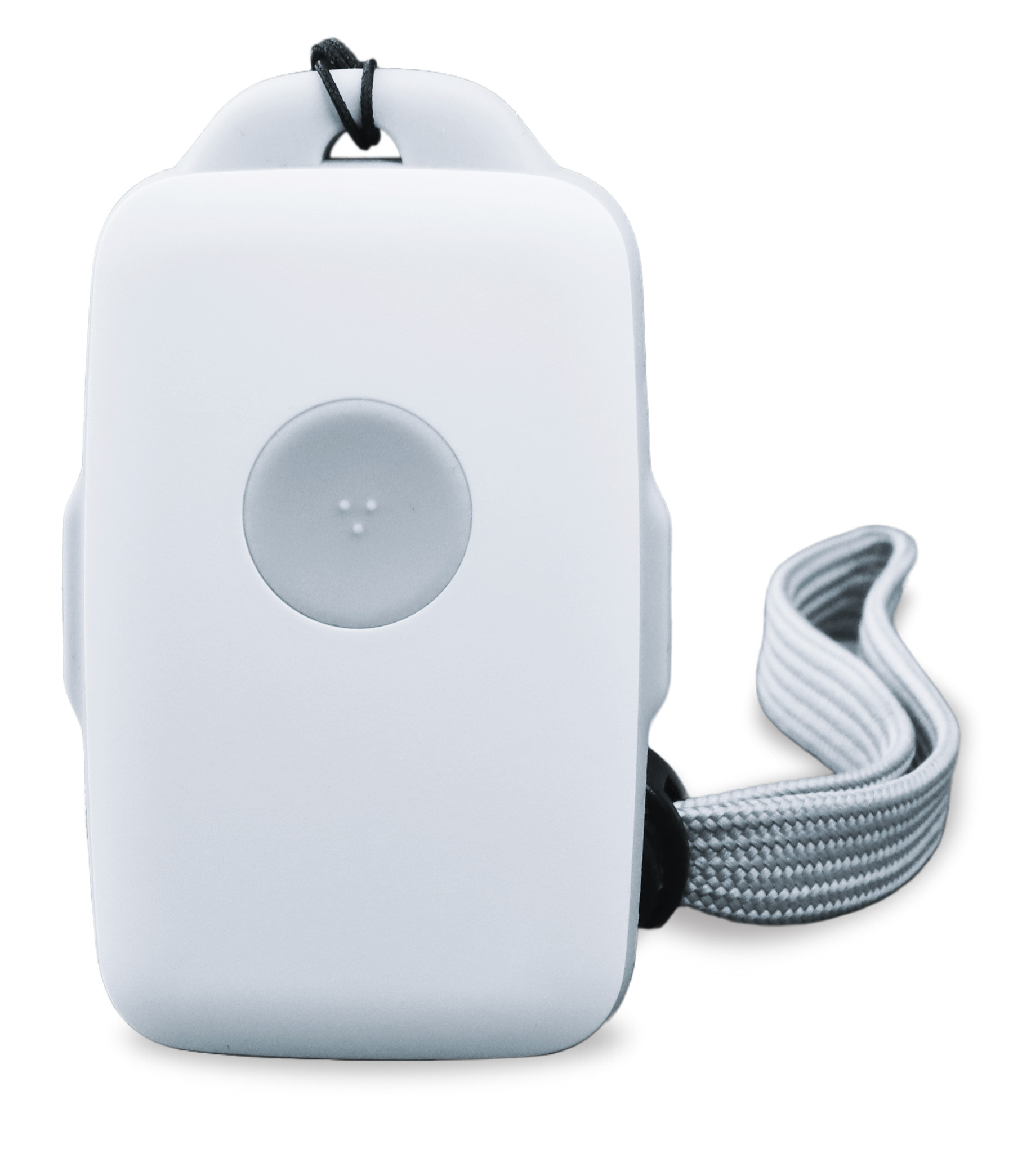
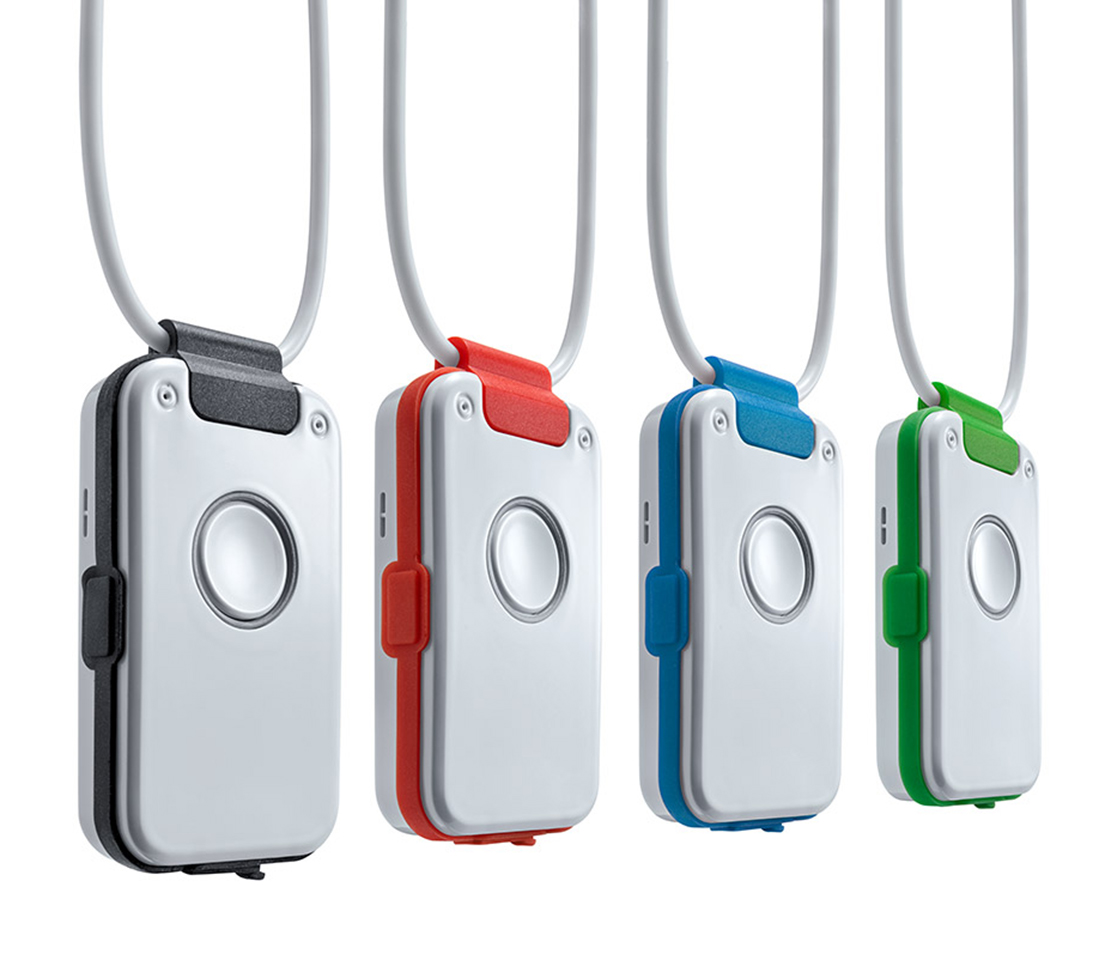
The small hands-free phone is very simple, yet highly efficient.
It contains everything you need so that
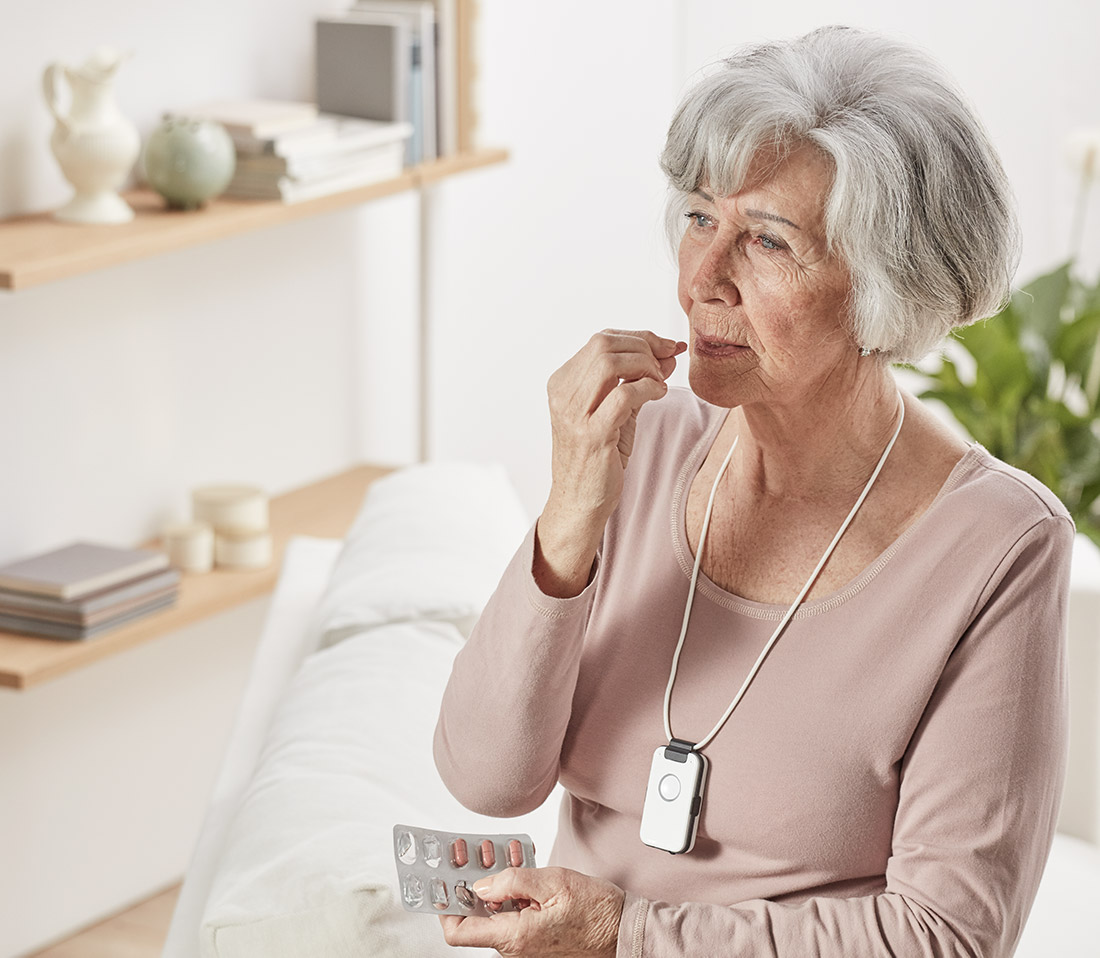
- a person living alone can get help at the push of a button
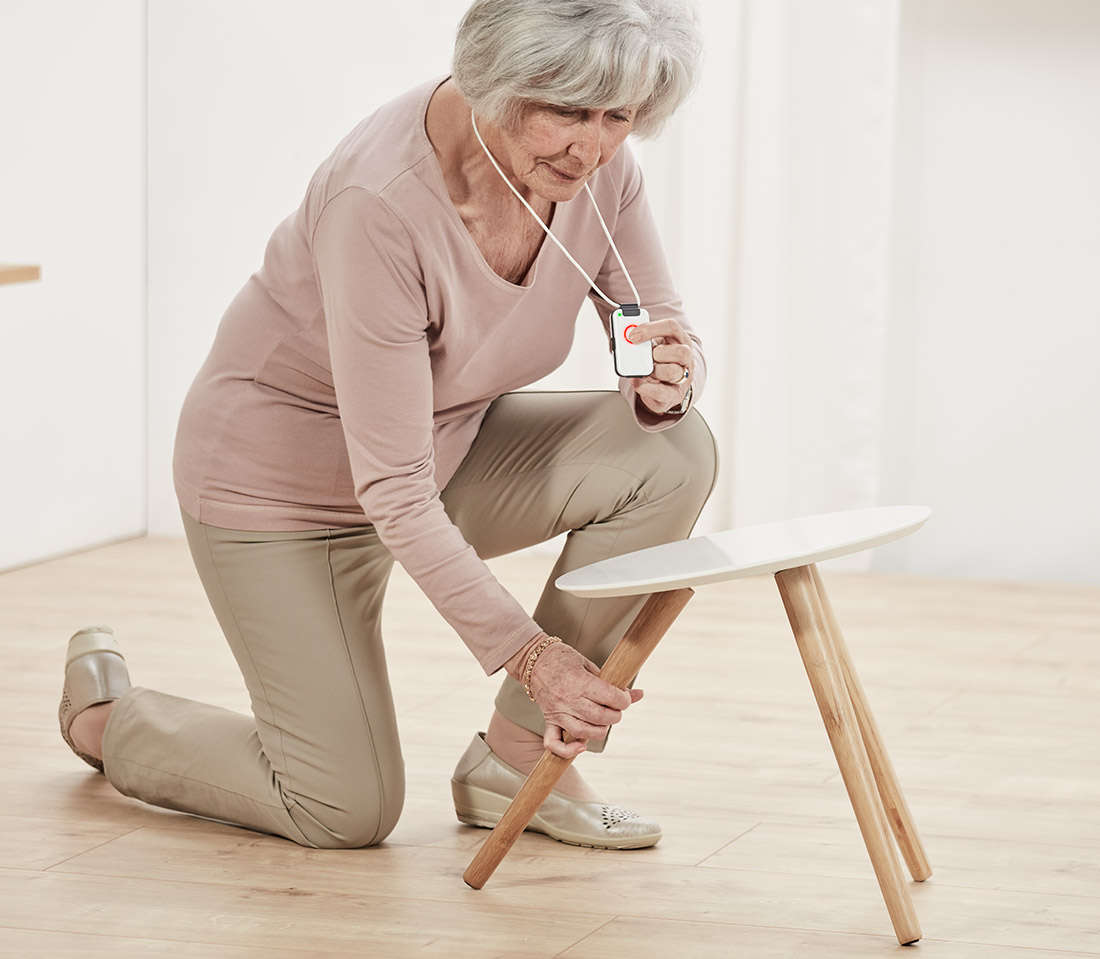
- help is called immediately in case of a fall
- help is contacted in case of a smoke alarm
- an elderly, visually impaired person can make phone calls again
- a severely demented person can be contacted
- a blind person can make phone calls
additionally, it announces the time at the push of a button …
… or notifies with time-controlled reminders
Easy to set up … and Easy to use
Product Description


Documents
FAQs
Downloads
Configuration (PC APP) and current device software (firmware) for the DA1432XL via the link:
www.pcapp.net
PC APP and firmware for the predecessor models DA1422 and DA1432P:
DA1432XL (DA1450)
Questions and Answers on:
1 Features and Characteristics
1.1 What is the difference between DA1432XL and DA1450?
- DA1432XL is identical in design to DA1450.
- DA1432XL is sold by DOSCH&AMAND exclusively to private customers in Germany.
- DA1450 is available from various specialist retailers in several European countries.
1.2 What exactly is the DA1432XL?
- DA1432XL is a phone for the blind with 100 contacts that can be read aloud in an emergency.
- DA1432XL is an emergency transmitter for manual alarm to personal help contacts.
- DA1432XL is a fall detector with automatic alarm to help contacts.
- DA1432XL is a smoke alarm detector with automatic alarm to help contacts.
- DA1432XL announces the time
- DA1432XL has a time-controlled reminder function
1.3 Who is the device intended for?
DA1432XL is ideally suited for safety and contact for:
- seniors living alone
- elderly people with visual impairment
- people with dementia including room monitoring
- blind people
and
- for everyone who wants to use a comfort phone at home
- for everyone who wants to make hands-free calls with the whole family (conference phone)
- for everyone who wants to be immediately reachable, indoors and in the garden
- for everyone who wants to have long hands-free conversations with good quality
1.4 What do I need to set up the device?
Only a DECT base station is required for operation. This is usually your existing DECT base. Simply register it like a DECT phone. The device can then also be used as a telephone. No additional monthly costs or fees apply. DA1432XL is a simple DECT phone, but with special features.
1.5 How is help provided in an emergency?
You store telephone contacts that are independently and repeatedly dialled by the device in an emergency until a help contact has been reached. These contacts are usually people from family, friends, or the neighbourhood. If this fails, there is still an emergency number, e.g. the family doctor, which is dialled continuously until the call is answered.
1.6 Why is the DA1432XL also a phone for the blind?
- The device has 100 contacts that can be found and dialled very easily.
- The contacts are divided into 10 registers that you can label yourself.
- The built-in voice assistant reads out the registers and names of contacts.
- For the age-blind, the device can read out the phone book.
- The PC APP installation is designed to be accessible (JAWS, NVDA).
- The PC APP is downloaded to the PC from the website: www.pcapp.net
- Incoming calls are announced by name.
- The device also has the functions: Missed calls and caller list
1.7 How do I enter phone numbers and names?
Via the website www.pcapp.net you can download a PC program: The PC APP.
In principle, you enter names and numbers. Plus personal settings such as tones, volume, or your personal details with place of residence. These are communicated to the help contact, for example by the voice assistant:
»This is a fall alarm for Susanne Mustermann, at … Street …. Access to the apartment via …«
1.8 Can I set up the device at a different location?
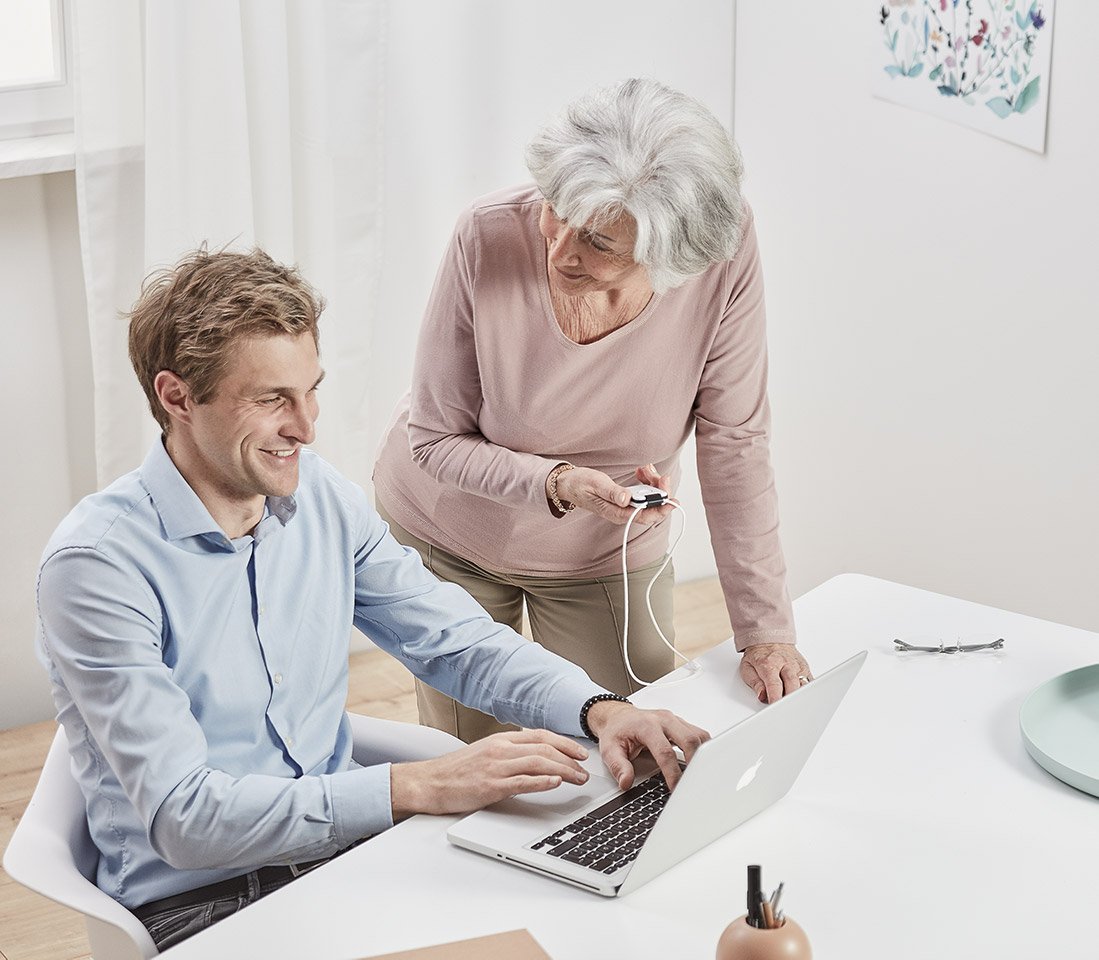
Yes. To do this, download the PC APP from the internet and connect the device to the PC via USB. After entering the contact data, send the device switched off to the target person. They then only need to press the registration button on your telephone system to put the device into operation.
1.9 How does the help call work in case of a smoke alarm?
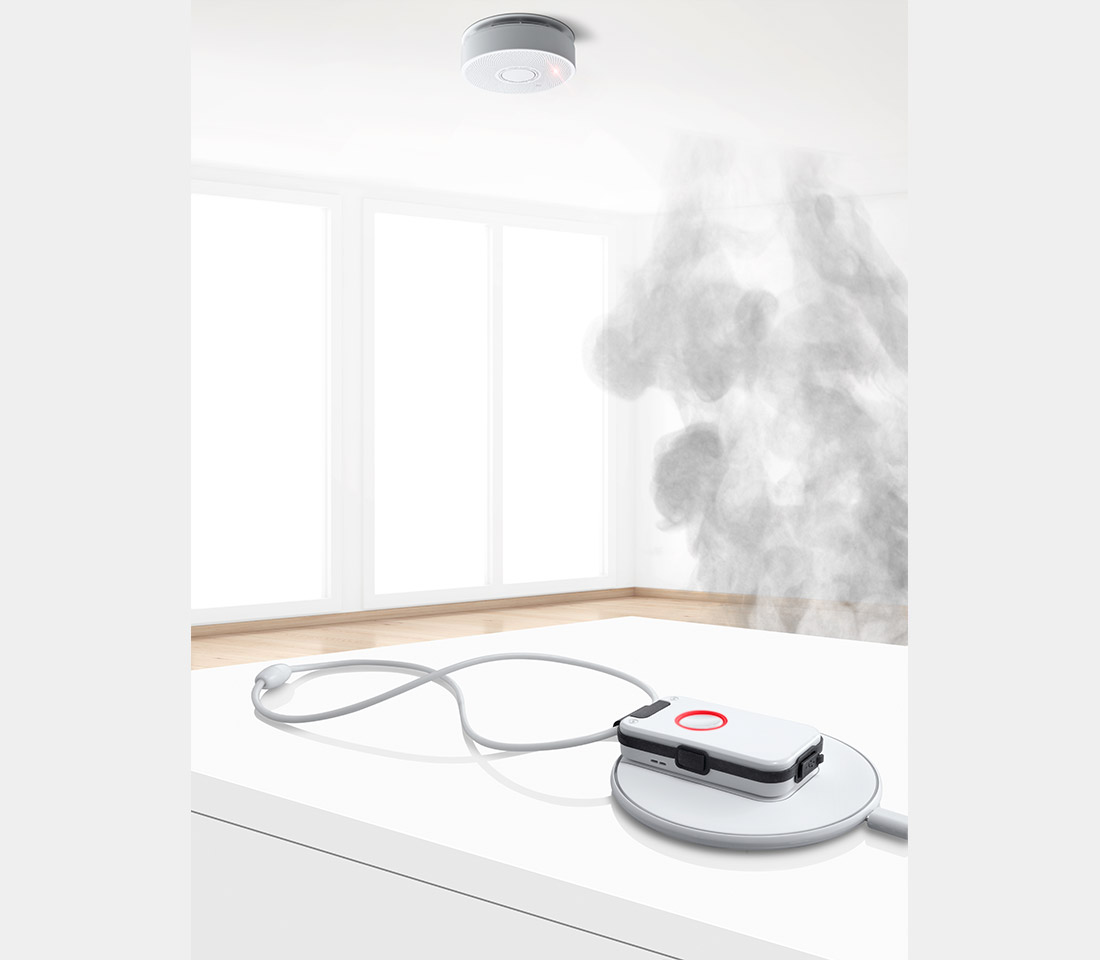
All you need is your existing smoke alarm device. It doesn't matter which type. The DA1432XL recognises the smoke alarm of all devices on the market. Smoke alarm detection is activated when the device is placed on the charging disc. No further configuration is required.
In an emergency, DA1432XL calls through the help call list and remains in alarm mode until the smoke alarm is switched off or DA1432XL is removed from the charging disc.
1.10 How is smoke alarm detection configured?
DA1432XL is factory-configured with smoke alarm detection ON. You can deactivate this function in the PC APP. The function does not need to be configured further. If DA1432XL triggers a help call due to a smoke alarm (see help call list, SOS), the person called will be informed by the DA1432XL voice assistant:
»This is a smoke alarm for Susanne Mustermann, at … Street …. Access to the apartment via …«
1.11 How can I change the language of the voice assistant?
Via the website www.pcapp.net you can download the PC APP again and select the desired language. After downloading and installing on the PC, connect DA1432XL to the PC APP via the USB cable of the charging disc.
DA1432XL will then automatically be set to the new language.
1.12 How is fall detection/fall alarm configured?
DA1432XL is factory-configured with fall detection ON. You can deactivate this function in the PC APP. The function does not need to be configured further. If DA1432XL triggers a help call due to a fall (see help call list, SOS), the person called will be informed by the DA1432XL voice assistant:
»This is a fall alarm for Susanne Mustermann, at … Street …. Access to the apartment via …«
You can test the fall detection by dropping the device from approximately 1.20 metres onto the floor. DA1432XL recognises that only the device has fallen to the ground and announces this with »Ouch« and a double prompt to pick the device up again. A help call would also be triggered in this case.
2 System Setup with DECT Station
2.1 Do I need a SIM card?
No, the device is connected to your DECT base station for fixed-line telephony. It is an emergency call system for home and garden use, primarily for elderly people living alone. Therefore, the operation of the emergency transmitter is free of charge, no monthly costs.
2.2 What do I need to put the DA1432XL into operation?
Only a DECT base station for fixed-line telephony is required for operation. DECT is the international standard for cordless telephony in the home. A DECT base is usually already available. From a technical perspective, DA1432XL is nothing more than a simple DECT phone and only needs to be registered with the DECT base. You can then already receive calls and make calls.
2.3 What types of DECT base stations are there?
- There are many types of DECT base stations today. Most are already integrated in the routers of service providers (Deutsche Telekom, 1&1, Vodafone, …).
- There are also simple DECT base stations, such as Gigaset, Panasonic, Philips, …
- It doesn't matter whether the DECT base station is connected to an IP network or an analogue remote network. DA1432XL communicates with the base station only via the DECT interface.
2.4 What does the system setup look like?
Recommendation: Keep the setup simple! So only one active DECT station (e.g. Fritzbox or Speedport or Gigaset base station, …) and as few parallel DECT phones as necessary, if possible only one additional DECT phone. No further phone is needed if you can manage with the 100 contacts of the DA1432XL.
Note: a DECT base can usually operate 5–6 DECT phones
Switch off all answering machines. They often "steal" the incoming call.
Elderly people are easily confused when phones ring everywhere in the apartment.
Recommendation: Do not set up DECT dual stations by connecting an additional DECT base station to the DECT router. Errors could then occur when identifying the number of the incoming call. The name of the caller would then not be announced.
2.5 What to do if there is a range problem somewhere in the house or garden?
The range of the DA1432XL is generally sufficient for a medium-sized apartment and a small garden. Masonry, especially exterior walls and ceilings, strongly dampens the radio signal due to steel reinforcement. DA1432XL is not "repeater-capable", so in case of range issues only a more central positioning of the DECT base station will help.
3 Registering with DECT Station
3.1 What types of DECT base stations are there?
- There are many types of DECT base stations today. Most are already integrated in the routers of service providers (Deutsche Telekom, 1&1, Vodafone, …).
- There are also simple DECT base stations, such as Gigaset, Panasonic, Philips, …
- It doesn't matter whether the DECT base station is connected to an IP network or an analogue remote network. DA1432XL communicates with the base station only via the DECT interface.
3.2 How is DA1432XL connected = registered with my DECT telephone system?
Registering with the DECT base station is technically identical to registering a DECT phone with the telephone system, only in this case MUCH EASIER:
Registration consists of only 2 steps:
Step 1: Activate the registration mode of the DECT base station
Step 2: Press the call button of DA1432XL »Registration activated«
Frequently observed errors:
- No. 1: The registration mode of the DECT base was not activated correctly
You must hold down the REGISTER button for several seconds
The registration mode switches off again after 5 minutes => press again
DA1432XL reports: »Base not in registration mode« - No. 2: DA1432XL is too far from the DECT base station
The range is intentionally reduced during registration!
This is to avoid (unlikely) incorrect registrations.
DA1432XL reports: »No base station found« - No. 3: DA1432XL is not sufficiently charged
Please charge for approx. 30 min beforehand
NOTE: Some DECT base stations block new registrations when the maximum number of DECT phones has already been registered. Note: These phones do not necessarily need to be active. In this case, the base station may reject the registration:
Example Speedport Router: max. 5 registered DECT phones.
The voice assistant reports in this case: »Please check base station«
The solution is to delete DECT phones via the configuration programme of the router or DECT base station.
3.3 How does "easy subscription" work?
A common registration method today is the so-called »easy subscription«. In this case, the system PIN or registration PIN of the base station is set to "0000". DA1432XL always sends the system PIN "0000" by default, which means a smooth (easy) registration is completed within a few seconds.
If the DECT base has a different SYSTEM PIN, you must either temporarily set the PIN to "0000" or register DA1432XL via the PC APP. There you can enter any PINs, including up to 8 digits for PBX systems.
3.4 The range is not as large as my DECT phone
Although the device has the best possible radio coverage, restrictions in range are unavoidable due to the form factor and how it is worn on the body. As a rule, however, this is sufficient to cover a medium-sized apartment on one floor.
3.5 Can I register and operate multiple DA1432XL units with my DECT base?
Yes, you can register and operate up to 5 DECT phones at any DECT base without interference. Multiple DA1432XL units can also be operated at one DECT station.
4 PC APP
4.1 What is the PC APP?
Using the PC APP (a simple Windows PC programme), telephone contacts are entered with names and numbers. In addition, personal settings can be made, such as ringtone, volume, waiting pauses while reading out the phone book, details about the person and place of residence, and how to access the apartment in an emergency, etc.
4.2 How do I get the PC APP?
Download the PC APP with your Windows PC (unfortunately an Apple computer is not possible due to the voice converter) from the website www.pcapp.net. At the same time, you set the language in which the PC APP and the DA1432XL voice assistant will operate, i.e. German, English, Spanish, Turkish, Italian, … This takes a few minutes. Please be patient.
4.3 I have downloaded the PC APP. What do I do now?
After the PC APP has been downloaded (in the Downloads folder of the PC), the PC APP must be installed by running the SETUP programme. This happens automatically when you start the SETUP programme. At the end, the DECT TeleCare icon appears on your PC screen. Click on this icon to start the PC APP:
Frequently observed errors when opening the PC APP and connecting to DA1432XL:
- No. 1 DA1432XL does not connect to PC APP
- The USB cable is only a charging cable without data line
Please use the USB cable of the charging disc - The Windows operating system has not recognised the new USB device
Please unplug DA1432XL from the PC and plug it back in
- The USB cable is only a charging cable without data line
- No. 2 When TRANSFERRING the names to the DA1432XL, the names are not audible
The internal PC speaker is switched off
Please unplug DA1432XL.
Then you can see the status of the internal speaker in the bottom right
Set it to a desired volume e.g. »70«.
Plug DA1432XL back in and continue.
4.3 I was unable to load audio data onto the device?
Before opening the PC APP, close all programmes and applications, especially those that use audio, e.g. streaming video or audio (internet radio). Even if you are not listening to these programmes, they interfere with the audio management on the PC.
4.4 I did not hear any audio data when it was being transferred to the device?
Before connecting the DA1432XL to the PC, activate the built-in PC speaker and set a comfortable volume level. You can see this on the taskbar at the bottom right.
5 Making Calls / Phone for the Blind
5.1 How many contacts can be stored on the device?
Up to 100 contacts with names and phone numbers can be stored.
For better structuring, the phone book has 10 registers that you can name with your own titles, e.g. Favourites, Family, Friends, Doctor, Food & Drink, Transport, …
Registers and phone numbers are announced by the voice assistant with title and name.
5.2 How can an elderly, severely visually impaired person call someone?
Up to 100 contacts with names and phone numbers can be stored. Contacts that are called more frequently should be placed as far forward as possible. It is best to define the 1st register as Favourites and store the 10 most used contacts there.
If a severely impaired person wants to make a call, they simply press one side button and are then in the phone book, which is read out name by name. They then only need to press the call button and the person is called. All supported by the voice assistant.
5.3 How can a severely demented person be called?
In extreme cases where a person has difficulty pressing the call button when called, automatic call acceptance can be set for specific numbers in the phone book. When an incoming call is received, DA1432XL automatically answers and connects to the caller, who can then speak immediately.
5.4 Can a blind person set up the device themselves?
Yes, if that person has and can use technical tools such as a screen reader. The PC APP of DA1432XL is compatible with JAWS and NVDA.
5.5 How can a blind person quickly find contacts in the phone book?
Up to 100 contacts with names and phone numbers can be stored.
For better structuring, the phone book has 10 registers.
The device has 3 different methods for selecting a contact:
- Fast for experienced users, including blind people
Here you select register and name using both side buttons - Standard, very easy to use
Here you select register and name using one side button. You don't need to switch side buttons. - Slow read-aloud mode for the age-blind
Here the phone book is read out slowly
6 Help and Emergency Call
6.1 What is the difference between the three help call numbers and the emergency number?
The help call sequence consists of 3 help call numbers and 1 emergency number.
Help call numbers:
You can define up to three help call numbers with name and telephone contact. These three numbers can be repeated. You set the number of repetitions. You also set how long a called phone should ring before the next number is dialled.
DA1432XL has an intelligent Call Manager (iCM), a monitoring software that supervises the dialling of contacts according to strict rules and decides whether a valid help contact has been established. Sending back confirmation digits to the emergency call system is not required.
Non-valid contacts include, for example, information systems of service providers ("This number is currently unavailable") or answering machines that pick up after several seconds, or contacts that hang up again within 2 seconds.
Emergency number:
You can optionally define an emergency number that is called if no help contact has been reached. This emergency number is treated like a normal phone number and rings until someone answers.
6.2 How does a help call work?
The help call sequence consists of 3 help call numbers and 1 emergency number. The sequence is triggered,
- when the target person presses the call button for 2 seconds
- when the target person has fallen
- when a smoke alarm has been triggered
The help call numbers are people from family, friends or neighbours.
The emergency number is a professional help service that is always easily reachable, e.g. the family doctor, or a service centre or mobile care service if there is an agreement in place.
7 Fall Detector
7.1 How is fall detection/fall alarm configured?
DA1432XL is factory-configured with fall detection ON. You can deactivate this function in the PC APP. The function does not need to be configured further. If DA1432XL triggers a help call due to a fall (see help call list, SOS), the person called will be informed by the DA1432XL voice assistant:
»This is a fall alarm for Susanne Mustermann, at … Street …. Access to the apartment via …«
You can test the fall detection by dropping the device from approximately 1.20 metres onto the floor. DA1432XL recognises that only the device has fallen to the ground and announces this with »Ouch« and a double prompt to pick the device up again. A help call would also be triggered in this case.
Simulating a real fall is difficult. Those interested will find a paper on this on the DA1432XL website under the Documents section.
7.2 Why is the DPDM fall detection better than others?
DPDM was developed over several years with scientific support. It evaluates the density spectrum of the forces acting on DA1432XL, rather than the individual signals of the acceleration sensor. These signals have poor reproducibility and are massively ambiguous. The density spectrum, on the other hand, is almost unambiguous. It is very distinctive for a person falling, for the product dropping to the floor, for everyday movements, etc. As a result, there are virtually no false alarms.
Other "fall detectors" evaluate the impact, which has very poor reproducibility, and must then analyse gestures to prevent false alarms. However, such gestures are also ambiguous and difficult to predict in elderly people who have fallen.
More information can be found on the product website:
www.da-products.de
8 Smoke Alarm Detector
8.1 What do I need for the help call in case of a smoke alarm?
All you need is a smoke alarm device. It doesn't matter which type. The DA1432XL recognises the smoke alarm of all devices on the market. The automatic emergency call in case of a smoke alarm is activated when the device is placed on the charging disc. No further configuration is required. However, you can deactivate the smoke alarm detection using the PC APP.
DA1432XL remains in alarm mode until the smoke alarm is switched off or DA1432XL is removed from the charging disc.
8.2 How is smoke alarm detection configured?
DA1432XL is factory-configured with smoke alarm detection ON. You can deactivate this in the PC APP.
The function does not need to be configured further. If DA1432XL triggers a help call due to a smoke alarm (see help call list, SOS), the person called will be informed by the DA1432XL voice assistant:
»This is a smoke alarm for Susanne Mustermann, at … Street …. Access to the apartment via …«
9 Time
9.1 How can I set the time on the device?
a) The time is normally set via the PC APP.
Under the "Reminders" register you will find the current time, which is copied from the PC time. If you set the switch to "AUTO", this PC time is automatically transferred to the device as soon as you connect it to the PC APP. If you want to manually enter a time into the device, switch off AUTO and enter the desired time via the PC keyboard.
b) The time can also be set via an external call. When connected to an external caller, they can enter the time of the device on the telephone keypad using the following number sequence:
#9348#hhmm# where hh = hour and mm = minute
9:35 is then hh= 09 and mm = 35
The digit sequence 9348 is easier to remember as the character sequence ZEIT.
You can also choose another language, e.g. English: TIME = 8463
9.2 How accurate is the time?
The internal clock of the device is very accurate. However, deviations of 5 minutes per month are possible because the device cannot be synchronised externally. The announcement at the push of a button only has a "resolution" of 2.5 minutes. This is for technical reasons and is not a defect.
Please note that there are many "current" time indications in your home:
DA1432XL, PC, TV, smartphone, DECT phone … these times may differ in the minute range from each other, depending on where they obtain their reference for the current time. The difference can be up to 5 minutes relative to each other.
10 Miscellaneous
10.1 Where do I turn if I need support?
Contact the retailer from whom you purchased the device. They can help you with most problems. The retailer also has contact with the manufacturer DOSCH&AMAND.
11 Troubleshooting
11.1 My device is no longer responding. What can I do?
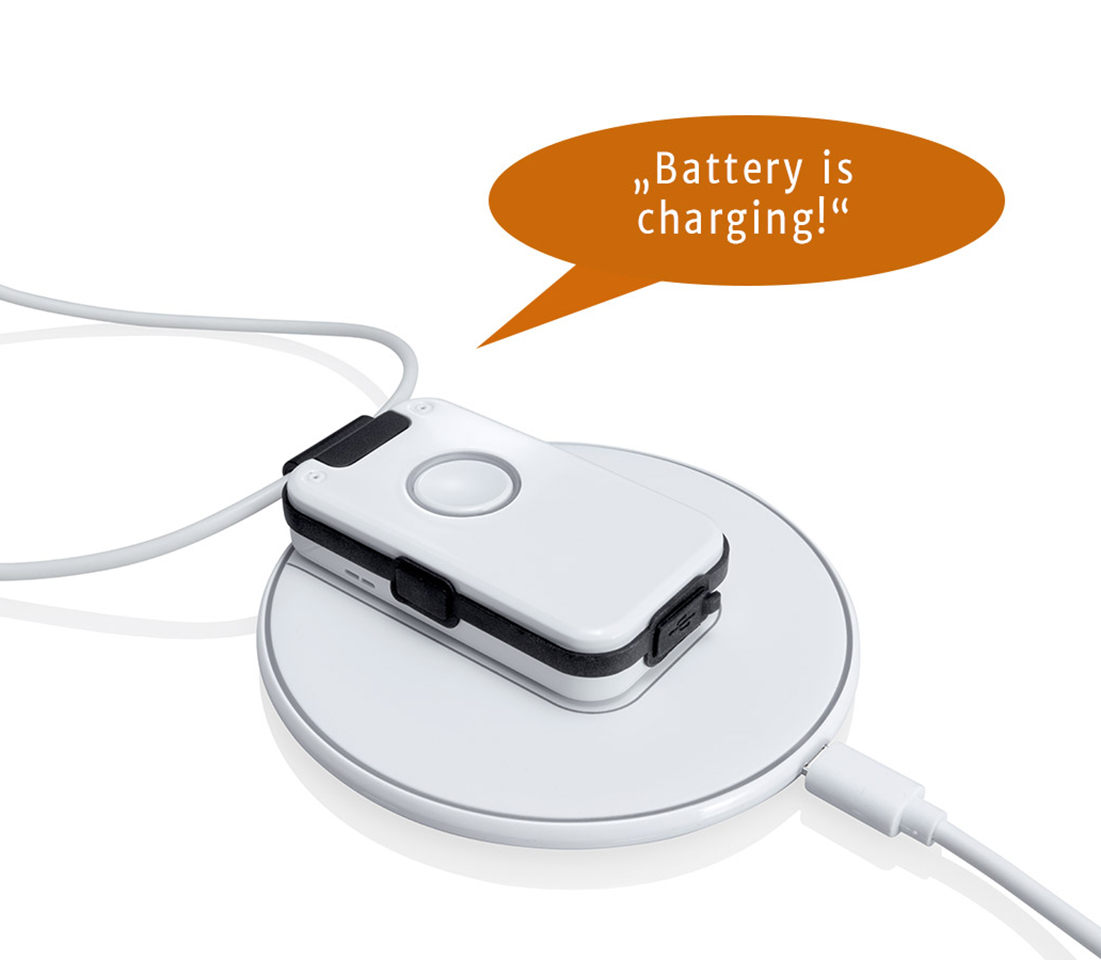
Normally this situation should never occur. If the device is "dead", it is usually because you have overlooked charging the device in time and have missed all the prompts "Please charge device", red LED flashing, the device beeping for 1 hour… In this case, place the device on the charging disc and wait a few minutes until sufficient charge has flowed for the device to announce itself again with "Battery is charging". In this case, leave the device on the charging disc for about 1.5 hours.
The device also has a restart function. A restart does not change the configuration and entries in the device. A restart can be activated in two ways:
- via the PC APP and the "SETTINGS" register
there you will find under the RESET options: Restart device
- by connecting the device to a USB power source
e.g. via the USB cable of the charging disc
11.2 I cannot register my device with the DECT station?
To increase security during registration with your DECT station, it was deliberately ensured that the distance to the DECT station must not be too large, typically in the same room. This means that other DECT stations that are accidentally or erroneously in registration mode are ignored.
Also make sure that the DECT station is in registration mode and has the system PIN "0000". The voice assistant recognises this and provides clear indications of the cause of the error.
Read more information under the section: Registering with DECT Station
11.3 PC APP: My device is not recognised at the USB port of the PC?
Usually the wrong USB cable is being used. The correct USB cable is the USB cable supplied for the charging disc. Since it is used as a charging cable, you cannot lose it or forget where you put it.
You can also use a different USB cable if it has data lines as well.
Often simply disconnecting the USB cable from the PC and reconnecting it already helps.
11.4 The device is not charging
Make sure the device is placed correctly on the charging disc and use the positioning aid, as this also prevents accidental slipping.
If the device is deeply discharged, it may take several minutes before it reaches the switch-on charge level. The voice assistant will then announce "Battery is charging".
11.5 My device reports "not ready for operation"?
There are several reasons why the device may not be ready for operation:
- not registered
Solution: Register device with DECT station - no phone numbers entered
Solution: Enter numbers using PC APP - outside DECT range
Solution: Check location of DECT station
Note on b)
If you have not yet entered a phone number and are currently unable to use the PC APP, you can temporarily call the device and save this number to the phone book and as a help call number. The voice assistant will provide a corresponding prompt when this call is received: "Save phone number? Press call button." Later, add a name to this number and extend the phone book with the desired contacts and the help call list.
12 Pacemaker
12.1 Source: Telefon24.de
https://www.telefon24.de/blog/eignen-sich-schnurlostelefone-fuer-nutzer-mit-herzschrittmacher/
The belief that cordless DECT phones interfere with pacemakers is still widespread. However, these concerns are unfounded, as extensive studies have now shown that modern cordless phones operating according to the DECT standard do not negatively affect the function of a modern pacemaker. DECT cordless phones pose no danger.
12.2 Source: Bürgerwelle
https://www.buergerwelle.de/assets/files/herzschrittmacher-info.pdf
Telephones can be divided into three categories with regard to their interaction with pacemakers: corded telephones, cordless telephones and mobile phones (cell phones). Corded telephones pose no danger to pacemaker wearers. In modern usage, cordless telephones refer to phones operating according to the DECT standard, used in homes as a replacement for corded telephones, where the transmitter station is connected to the telephone socket of the home or workplace. These telephones also do not affect pacemakers.
Please also consult the manufacturer/supplier/doctor for the specific recommendations for your pacemaker.